CA & Report Emails
Your CA Gets the Reports.
You Don’t Have to Remember.
Every month your accountant asks for the same reports. Save your CA once in Khata Billing and send any report from the report itself with Send to CA — or set a schedule, such as the GST report on the 5th of every month. Each email covers the period that has just ended and comes with the file attached.
What You Can Do
- Save your CA or accountant contacts (up to 50)
- Send any supported report with the Send to CA button next to Export
- Schedule reports weekly, monthly, quarterly or yearly
- Pick the day, time (IST) and an optional stop date
- Choose Excel, CSV or PDF as the attachment
- Each email covers the period just ended, e.g. last month
- Add a schedule name and a message for your CA
- See active schedules, the next email and delivery history
CA Contacts
Save once, reuse always
Send to CA
One click from any report
Schedules
Weekly to yearly
Delivery History
See what was sent
See It in the App
Real screens from Khata Billing — sample data shown.
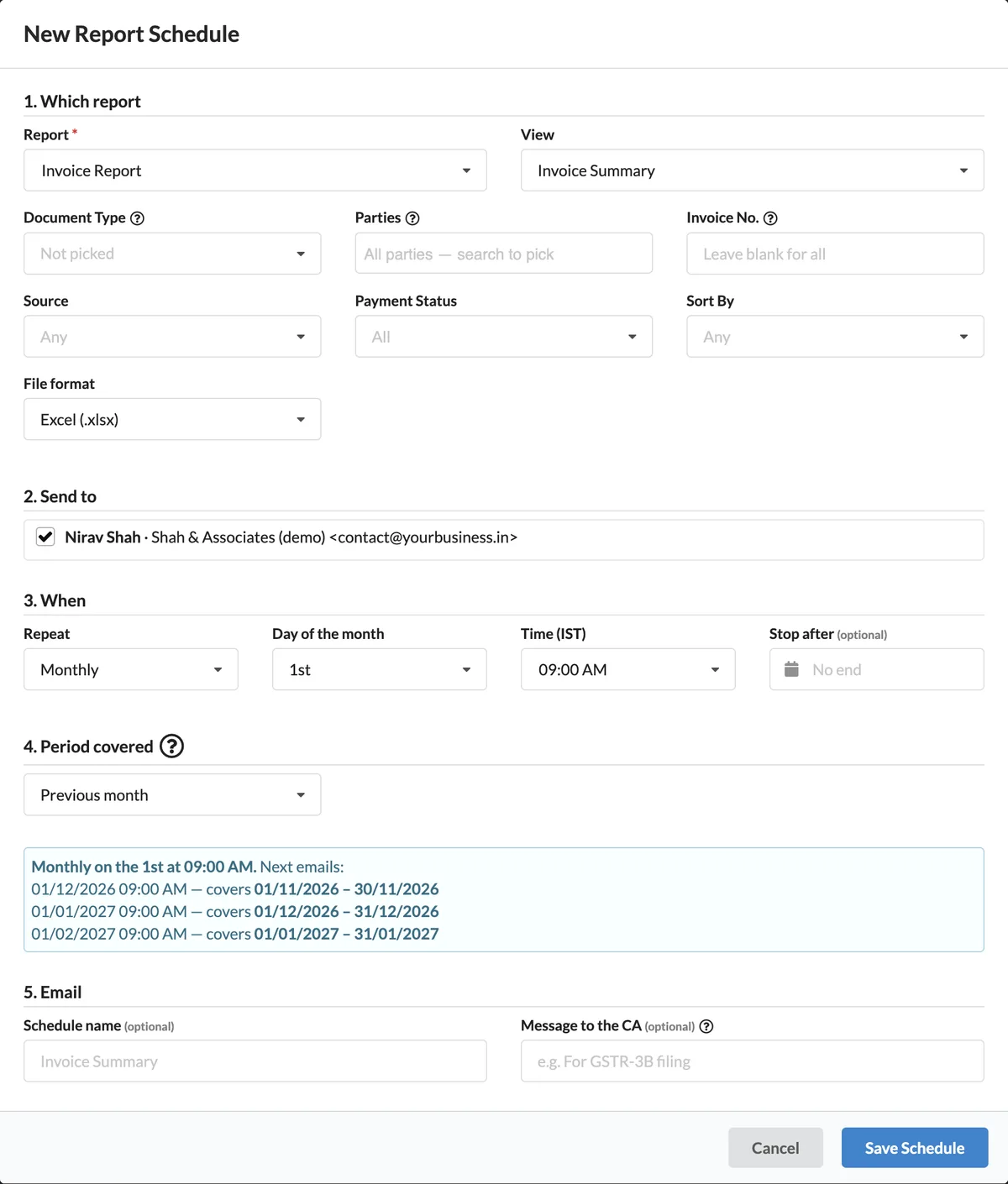
Schedule a Report in Five Steps
Pick the report and its filters, choose the CA, set when it repeats and which period it covers, and add an optional message. Khata Billing shows the next three send dates and the period each one will cover.
- Filters such as document type, parties, source and payment status
- Excel (.xlsx), CSV or PDF attachment
- Preview of upcoming emails before you save
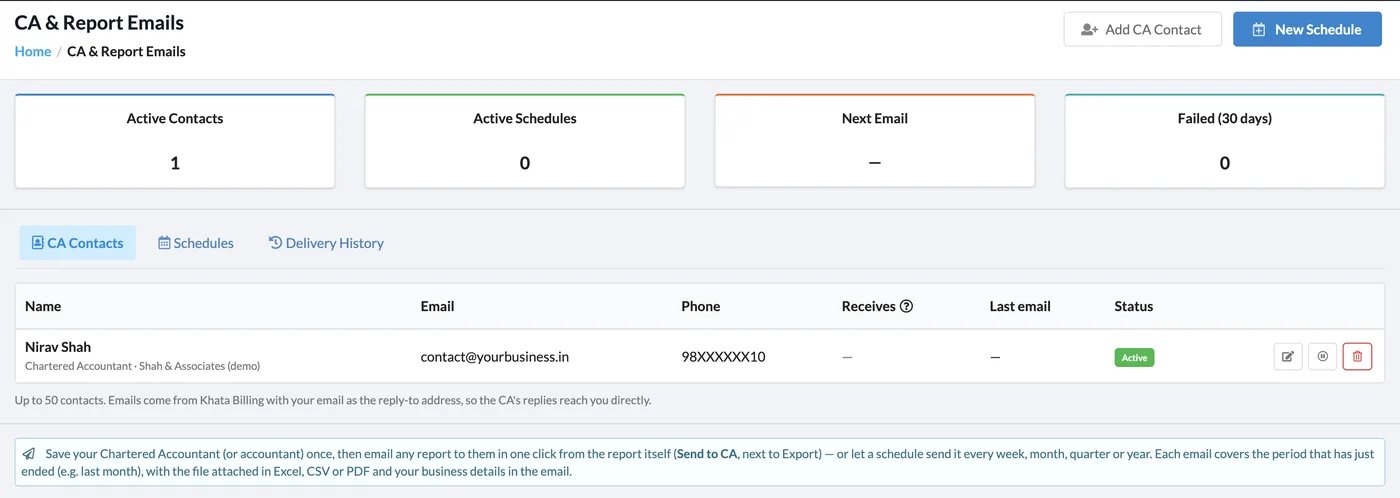
Contacts, Schedules & Delivery History
The CA & Report Emails settings page shows active contacts, active schedules, the next email and failed sends in the last 30 days.
- Emails come from Khata Billing with your email as reply-to, so the CA’s replies reach you
- Pause or edit a contact or schedule any time
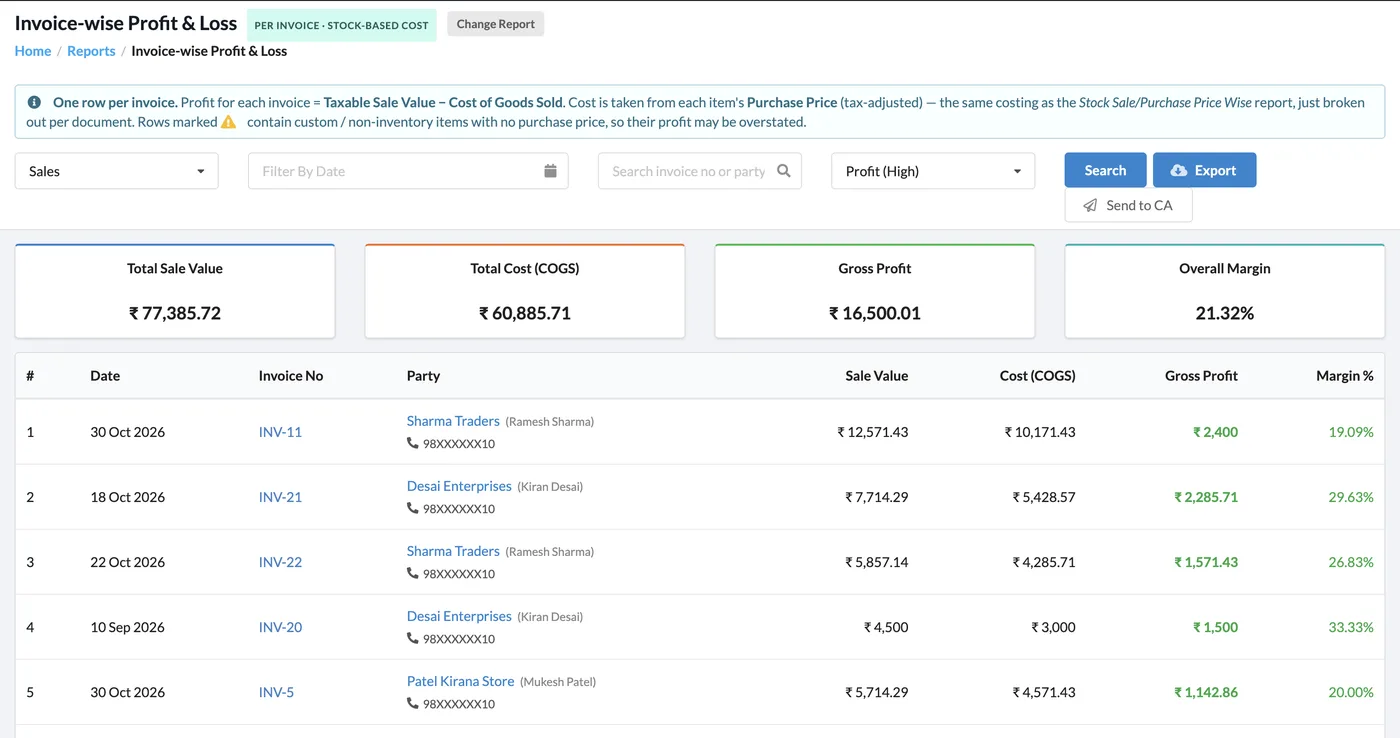
Send to CA, Right from the Report
On supported reports a Send to CA button sits next to Export. Use it to email exactly what you are looking at, with the filters you applied.
How It Works
Add your CA
Open Settings → CA & Report Emails and click Add CA Contact. Enter the name, email and phone.
Send a report now
Open a report, apply filters and click Send to CA next to Export.
Or set a schedule
Click New Schedule, pick the report, the CA, how often and which period each email covers.
Check delivery
See the next email and every sent email in the Schedules and Delivery History tabs.
Who It Is For
Good to Know
- Up to 50 CA contacts per account.
- Each scheduled email covers the period that has just ended, such as the previous month.
- Replies from your CA go to your own email address.
- Failed sends in the last 30 days are counted on top so you can fix an address quickly.
Frequently Asked Questions
Which reports can I send to my CA?
Supported reports show a Send to CA button next to Export — including invoice, GST and profit & loss reports — and the same reports can be scheduled.
How often can a report be sent?
Weekly, monthly, quarterly or yearly, on the day and time (IST) you choose, with an optional stop date.
What file does my CA receive?
An Excel (.xlsx), CSV or PDF file attached to the email, covering the period that has just ended.
Will my CA’s reply come to me?
Yes. Emails are sent by Khata Billing with your email as the reply-to address, so replies reach you directly.
Related Features
Let Your Reports Send Themselves — Free
No credit card needed. Create your account and start in minutes.



Start Using Khata Billing — 100% Free
GST Billing · Inventory · POS · Payroll · Banking · GST Reports — all in one free app