Auto Discount Rules
Run Offers Without
Remembering Them
Diwali offer, wholesale discount, a deal for one dealer — set each up as a rule with its own conditions. When you bill, Khata Billing checks the rules in priority order and suggests the discount that applies. Rules can be percentage or fixed amount, and can stack or stand alone.
What You Can Do
- Percentage or fixed-amount discounts
- Run a rule between two dates, e.g. a festival week
- Limit by invoice type — sales, POS, quotations, orders and more
- Limit by party type, or to specific parties only
- Apply only when certain items or categories are on the bill
- Set a minimum or maximum bill subtotal
- Priority order, with stackable or non-stackable rules
- Restrict a rule to the owner or to staff
Date Range
Offers that start and end
Party Types
Retail, wholesale, dealer …
Stackable
Combine rules or not
Priority
Highest rule checked first
See It in the App
Real screens from Khata Billing — sample data shown.
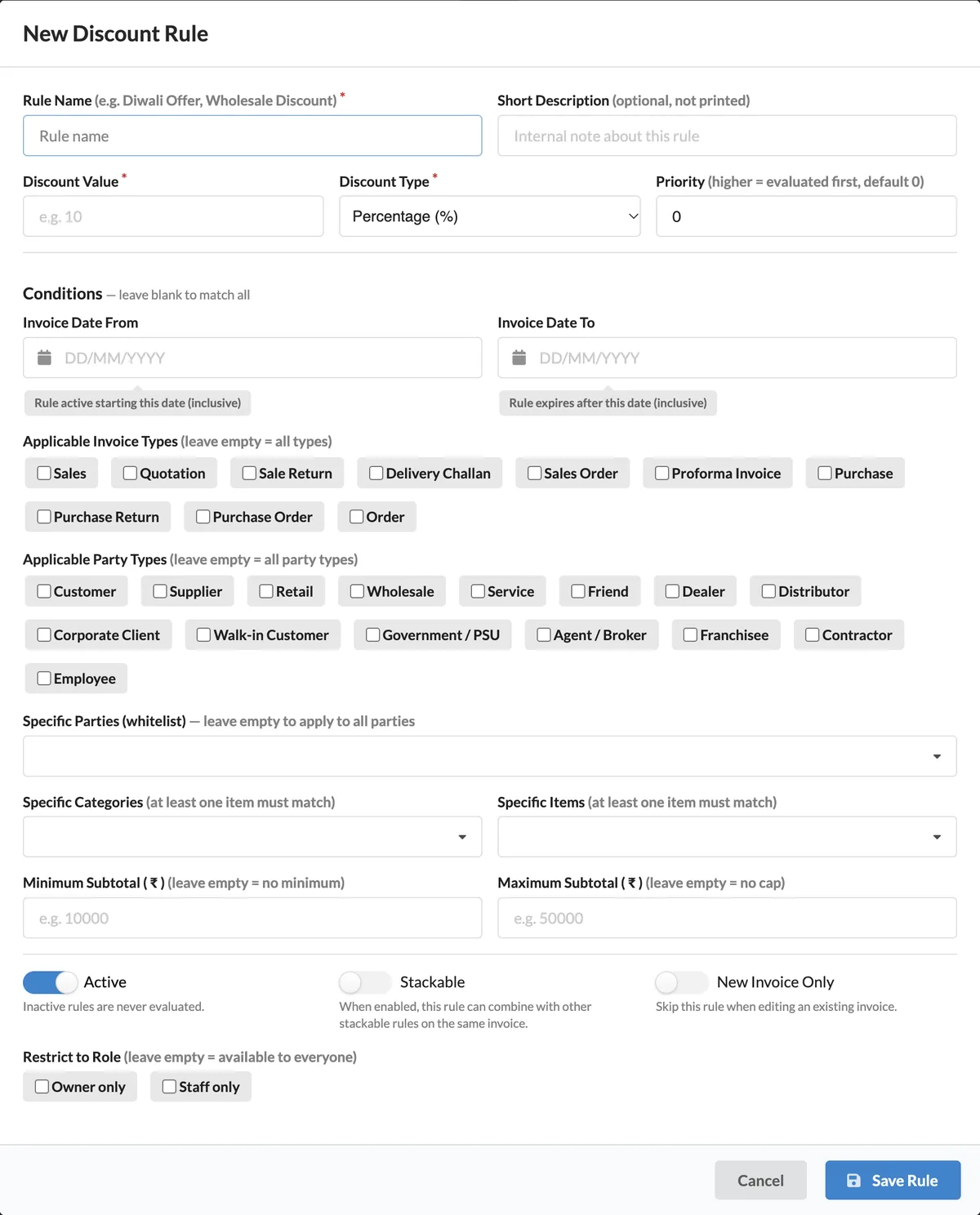
Every Condition in One Form
Name the rule, set the discount value and type, choose the conditions — leave any blank to match everything — and decide whether it is active, stackable, or for new invoices only.
- Applicable invoice types and party types
- Specific parties, categories or items
- Minimum and maximum subtotal
- Owner-only or staff-only rules
How It Works
Open Discount Rules
Go to Discount Rules in the menu and click New Rule.
Set the discount
Enter a rule name, the value, percentage or fixed amount, and a priority.
Add conditions
Pick dates, invoice types, party types, parties, items, categories or a subtotal range — or leave them blank.
Bill as usual
On the invoice or POS, the matching discount is suggested automatically.
Who It Is For
Good to Know
- Rules are checked from the highest priority down.
- A non-stackable rule stops further rules once it matches; stackable rules add up.
- Inactive rules are never checked.
- Turn on New Invoice Only to skip a rule while editing old invoices.
- Staff need the discount rules permission to manage rules.
Frequently Asked Questions
How does Khata Billing choose which rule to apply?
Rules are checked in priority order, highest first. A non-stackable rule stops the check once it matches; stackable rules can combine with other stackable rules on the same invoice.
Can a discount apply only during a festival?
Yes. Set Invoice Date From and Invoice Date To, and the rule works only for invoices dated in that range.
Can I give a discount only to wholesale customers?
Yes. Choose the Wholesale party type, or pick specific parties in the whitelist.
Does it work in POS?
Yes. Discount rules are applied on POS bills as well as on invoices.
Related Features
Set Up Your First Offer — Free
No credit card needed. Create your account and start in minutes.



Start Using Khata Billing — 100% Free
GST Billing · Inventory · POS · Payroll · Banking · GST Reports — all in one free app